
In this video, I want to talk about one of the most important and widely used features in the ISE software.
With this capability, you can significantly speed up the implementation process for your systems and, of course, save on costs.
More...
Leveraging IP Cores in FPGA Development
The ISE software offers a variety of tools to help you accelerate the implementation process.
One of these features is the ability to use IPs, or modules, that are pre-designed and ready for you to incorporate into your projects.
IP cores, which stands for intellectual property cores, refers to modules that have been previously developed by others, tested, and verified. We can be confident in their functionality.
ISE includes a large number of these IPs, and if they fit your needs, it's highly recommended to use them.
As I mentioned earlier, IPs are modules designed for common tasks. Because of this, there's a good chance that in a project you're working on, some of the IPs available in ISE will be useful to you.
Now, you might be wondering how exactly an IP can be used in a project you're working on.
One important point to keep in mind is that in projects of medium complexity or higher, you'll typically need to divide your project into different sections.
Practical Tip!
One important point to keep in mind is that in projects of medium complexity or higher, you'll typically need to divide your project into different sections.
Each section is implemented separately as a module, tested, and once you're sure that the module is working correctly, you connect it to other sections. This is what we call integrating your system to achieve the final design.
To do this, after you've partitioned your system into different modules, you usually write a main module, often called the top module.
You then incorporate and connect the smaller modules (aka sub-modules) within this top module to create the final, complete module.
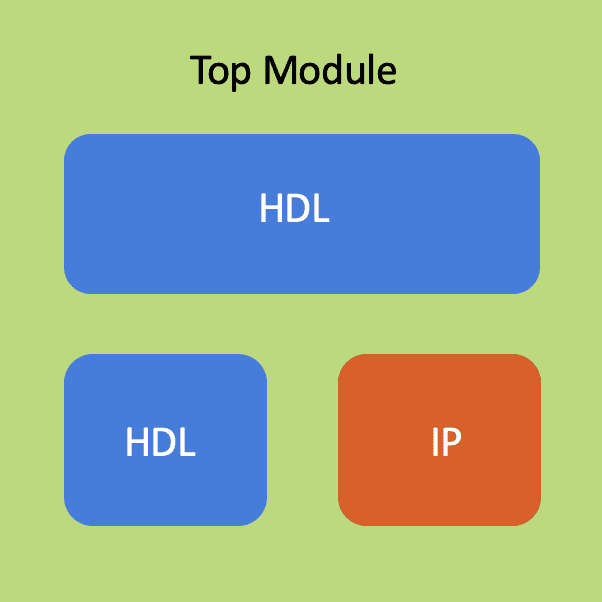
The main module and its sub-modules.
As you can see in this diagram, a top module might consist of several sub-modules. Some of these modules are typically written using a hardware description language like VHDL or Verilog.
For others, if a corresponding IP exists, you can use an IP from the ISE software. You bring these sub-modules together to build your overall system.
Example: Implementing a Square Root Function Using an IP Core
Let's look at a practical example within the ISE software to better understand this concept.
We'll see where these IPs are located, how we can use them in our code, and how we can test them along with the rest of our code.
To explain this further, I want to use an IP as an example – a simple one, of course – within some code.
To keep our example straightforward and focused on the main topic, I've prepared some code for you here.
It has one input, which I've named Input, and one output, which I want to be the square root of the input.
library IEEE;
use IEEE.STD_LOGIC_1164.ALL;

entity IP_Test is

    Port (

		Clock 			 : in   STD_LOGIC;
		Input 			 : in   STD_LOGIC_VECTOR (7 downto 0);
		Square_Root	: out	STD_LOGIC_VECTOR (4 downto 0)

			  );

end IP_Test;

architecture Behavioral of IP_Test is

begin

end Behavioral;
Now, to design a module that calculates the square root of the input, one approach is to research existing algorithms for this purpose, then write the VHDL code for it, test it, and verify its correctness.
This, of course, could take a significant amount of your time.
Fortunately, one of the IPs available in ISE is the square root IP. Therefore, the wiser choice is to use this pre-designed and tested IP instead of spending time learning the algorithm, writing the code, and testing it.
Utilizing IPs in Xilinx ISE
To use an IP, right-click in the hierarchy section and select New Source.
This time, instead of choosing a VHDL Module, select the IP option.
Now, you need to give your IP a name. I'll call it SQRT for short, and then I'll click Next.
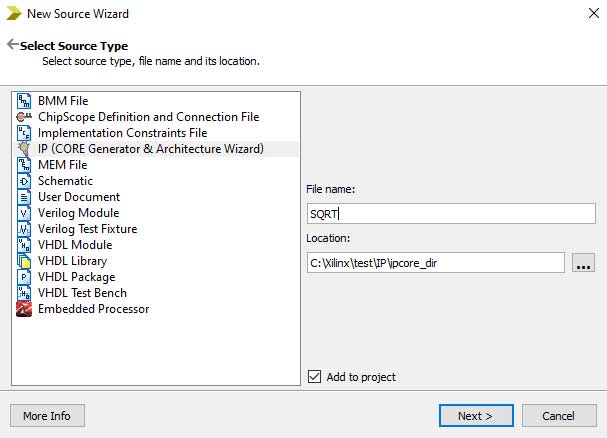
To use an IP, select IP in the New Source Wizard and then give it a name.
On this page, you can see all the IPs that the ISE software offers.
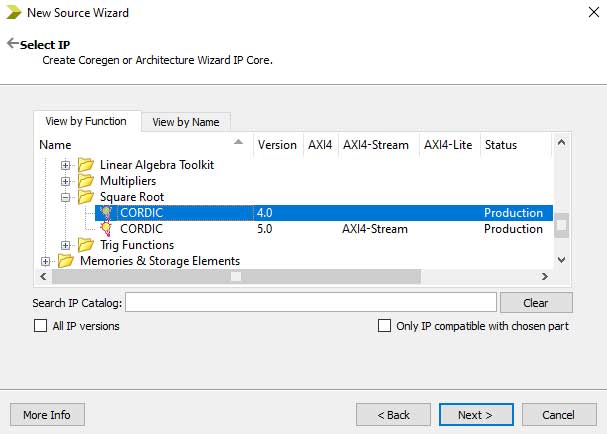
There are various IPs available in Xilinx ISE, categorized based on their functionality.
There are various IPs available, categorized based on their functionality. For example, if you want to perform signal processing tasks, there are several IPs here that you can explore.
For our example, we want to use the square root function, which you can find in the Math Functions folder, under the Square Root section.
For implementing the square root, the IP provided by Xilinx uses a well-known algorithm that you might have heard of.
It uses the CORDIC algorithm. With the CORDIC algorithm, you can implement various trigonometric functions like sine, cosine, and many other operations, one of which is the square root function.
So, I'll select the CORDIC option under Square Root, click Next, and finally Finish.
Configuring and Customizing IP Settings
For each IP, there's a wizard window, which might have multiple pages.
In this case, for this IP, there are three pages with various settings. Using these settings, you can customize the desired functionality for your specific application.
As you can see, this window also includes a section called IP Symbol, which displays the symbol or representation of the module you're customizing.
There's also a tab called Implementation Details (at the bottom of the page), which provides an estimate of how much of the FPGA resources will be consumed by this IP.
In this page, you need to select the desired operation. Since we want to implement the square root operation, I'll select Square Root.
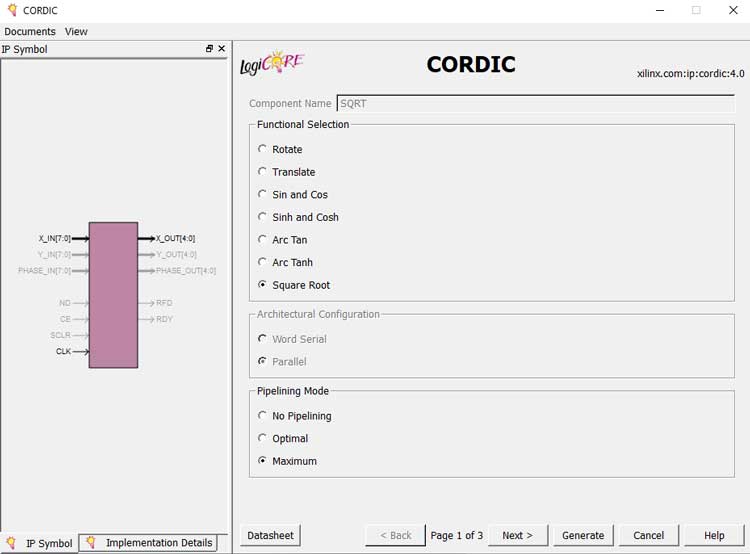
For each IP, there's a wizard window.
The next page also has some settings. The setting I'm interested in is the input bit width, which I'll set to 8 bits. The software automatically selects the output bit width, which is 5 bits.

On the next page, there are some control signals that we can choose to include or exclude.
For example, you can choose to have a Clock Enable for your module. If you do this, you'll see that the Clock Enable in the IP Symbol section becomes highlighted, indicating that it's active.
However, I don't need this option, so I won't select it.
Now, if you look at the IP Symbol, you’ll see that my inputs are System Clock, an 8-bit input for which I want to calculate the square root, and a 5-bit output that represents the square root result.
Now, if I click the Generate button, this block will be created for me and automatically added to my project.
If you want to learn more about the CORDIC algorithm and how to implement the functions it supports, and also gain more insight into how to configure the various parameters of this wizard, you can click on the Data Sheet button at the bottom.
This will automatically open the data sheet for this IP, where all the information you need, including how to configure the IP’s parameters, is provided for you to study.
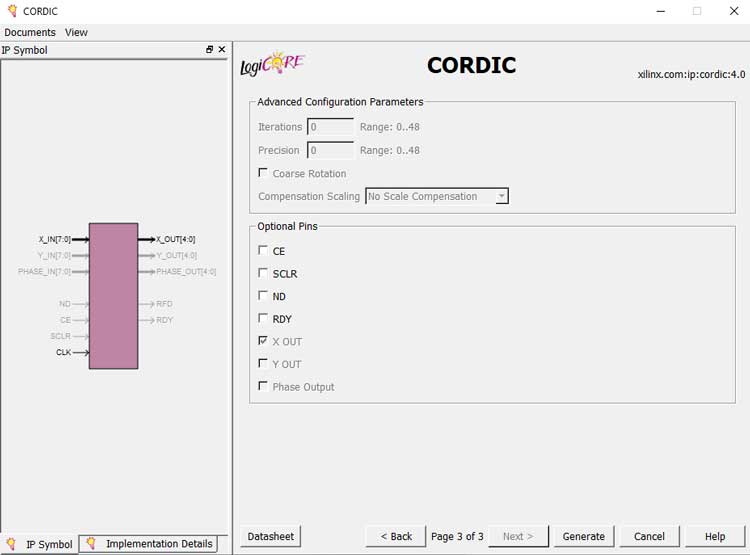
Now, I’ll click the Generate button to create this IP and add it to my project.
As you can see, the SQRT IP has been added to my project, and you can see it indicated by a symbol (light bulb) here.
Component Declaration and Instantiation
Now, I need to add this IP to my main code, which I've named IP_Test. To do this, I need to perform the two steps of module instantiation. The first step is to declare, this IP to this module.
You probably remember from previous lessons that the place to declare signals and modules is before the Begin statement of the architecture section.
After that, I need to use an instance of this IP in the system, or instantiate it. While instantiating it, I'll also do the port mapping.
Port mapping means specifying where the inputs and outputs of the IP or module I'm adding to my system should be connected.
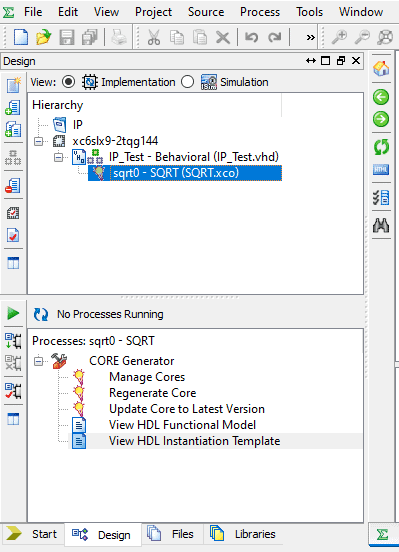
The SQRT IP has been added to my project.
To do this, you can simply click on the IP.
Then, at the bottom, in the Core Generator section, click on the plus sign to expand it. Then, double-click on the last option, which says View HDL Instantiation Template. This will automatically generate the code you need to write.
-- The following code must appear in the VHDL architecture header:

------------- Begin Cut here for COMPONENT Declaration ------ COMP_TAG
COMPONENT SQRT
  PORT (
    x_in : IN STD_LOGIC_VECTOR(7 DOWNTO 0);
    x_out : OUT STD_LOGIC_VECTOR(4 DOWNTO 0);
    clk : IN STD_LOGIC
  );
END COMPONENT;
-- COMP_TAG_END ------ End COMPONENT Declaration ------------

-- The following code must appear in the VHDL architecture
-- body. Substitute your own instance name and net names.

------------- Begin Cut here for INSTANTIATION Template ----- INST_TAG
your_instance_name : SQRT
  PORT MAP (
    x_in => x_in,
    x_out => x_out,
    clk => clk
  );
-- INST_TAG_END ------ End INSTANTIATION Template ------------
The first part of the generated code is the Component Declaration, which you can easily copy from the above code and paste it before the Begin statement of the architecture section.
For instantiation, you can take the second section, copy it, and, paste it after the Begin statement of the architecture section.
You don't need to make any changes to the part related to the Component Declaration. However, the section related to instantiation and port mapping requires a couple of modifications.
The first change is that the Component Declaration section starts with a phrase called a Label.
Before the colon, it's called a Label, and you should give it a unique name.
For example, I can name it sqrt0. After that, there’s Entity name (SQRT), followed by the keyword Port Map, and then you’ll see the area where you can perform the port mapping.
As I mentioned, port mapping means specifying which ports of the IP we're instantiating should be connected to which part or point in our main module.
I simply want to connect the inputs and outputs of this IP to the inputs and outputs of the module I wrote earlier.
Therefore, I connect the Clock to the clock of the SQRT block (clk).
I connect my input, which I named Input and is 8 bits wide, to the 8-bit input of the SQRT module (x_in).
And I connect the output of the main module, which I named Square_Root and is 5 bits wide to the output of the SQRT IP module (x_out) that I'm instantiating.
library IEEE;
use IEEE.STD_LOGIC_1164.ALL;

entity IP_Test is
    Port (
				Clock 								: in  	STD_LOGIC;
				Input 								: in  	STD_LOGIC_VECTOR (7 downto 0);
				Square_Root 		      : out   STD_LOGIC_VECTOR (4 downto 0)

			);
end IP_Test;

architecture Behavioral of IP_Test is

COMPONENT SQRT
  PORT (
    x_in 		 : IN 	STD_LOGIC_VECTOR(7 DOWNTO 0);
    x_out 	  : OUT  STD_LOGIC_VECTOR(4 DOWNTO 0);
    clk 			: IN 	STD_LOGIC
  );
END COMPONENT;

begin

sqrt0 : SQRT
  PORT MAP (
    x_in 			 => Input,
    x_out 		  => Square_Root,
    clk 				=> Clock
  );

end Behavioral;
So, what I've done is implement a square root module, or SQRT, using an IP.
To add it to my project, I performed the two steps of Component Declaration and port mapping.
Simulating the IP in ISE Using a Testbench
Now, we can also test this module to make sure it works correctly—by running a simulation.
For simulation, the first step, if you remember from the previous lesson, is to create a testbench.
So, I'll right-click in the hierarchy section, select New Source, choose the VHDL Test Bench option, and give the testbench a name.
I'll name the testbench IP_Test_tb. I'll select Next.
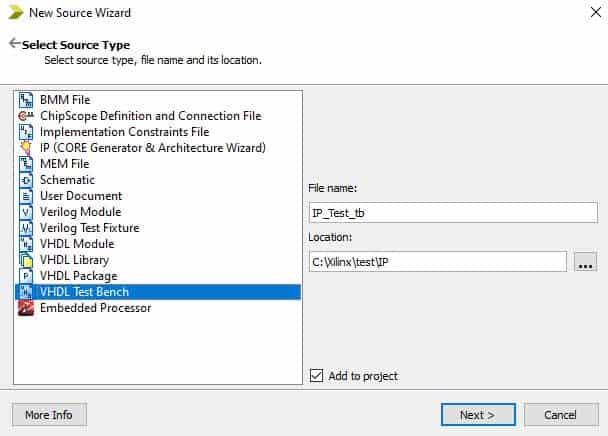
Creating test bench file in ISE software.
Now, I need to specify which module I want to create the testbench for. I want to create it for the IP_Test module, so I'll select it.
Then, I'll click Next and Finish.
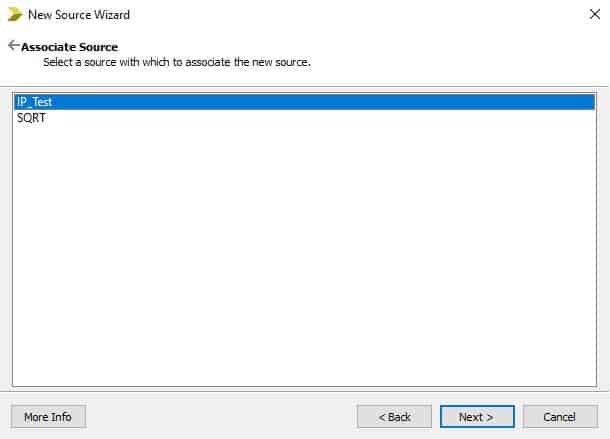
Create the test bench for the IP_Test module.
My test bench has been created, and all I need to do is provide an input to the Input port.
As you probably remember from the simulation lesson, I can go to the section of the test bench that says insert stimulus here and assign my desired value to my inputs – in this case, my only input is the Input port.
I want to give it the value 16 ("00010000"), so I'll enter that value here and save the testbench.
LIBRARY ieee;
USE ieee.std_logic_1164.ALL;

-- Uncomment the following library declaration if using
-- arithmetic functions with Signed or Unsigned values
--USE ieee.numeric_std.ALL;

ENTITY IP_Test_tb IS
END IP_Test_tb;

ARCHITECTURE behavior OF IP_Test_tb IS

    -- Component Declaration for the Unit Under Test (UUT)

    COMPONENT IP_Test
    PORT(
         Clock : IN  std_logic;
         Input : IN  std_logic_vector(7 downto 0);
         Square_Root : OUT  std_logic_vector(4 downto 0)
        );
    END COMPONENT;


   --Inputs
   signal Clock : std_logic := '0';
   signal Input : std_logic_vector(7 downto 0) := (others => '0');

 	--Outputs
   signal Square_Root : std_logic_vector(4 downto 0);

   -- Clock period definitions
   constant Clock_period : time := 10 ns;

BEGIN

	-- Instantiate the Unit Under Test (UUT)
   uut: IP_Test PORT MAP (
          Clock => Clock,
          Input => Input,
          Square_Root => Square_Root
        );

   -- Clock process definitions
   Clock_process :process
   begin
		Clock <= '0';
		wait for Clock_period/2;
		Clock <= '1';
		wait for Clock_period/2;
   end process;


   -- Stimulus process
   stim_proc: process
   begin
      -- hold reset state for 100 ns.
      wait for 100 ns;

      wait for Clock_period*10;

      -- insert stimulus here
		Input		<=	"00010000";

      wait;
   end process;

END;
Then, I'll select the Simulation option and click on my testbench.
At the bottom, next to ISim Simulator, I'll click on the plus sign to expand it and double-click on Simulate Behavioral Model.

Launch the ISim software to see the simulation results.
The ISim software is launched from within ISE, and you can see the results of this simulation.
Now, here, we have the number 16 for Input, and its square root, shown next to the Square_Root output, is 4.

Simulation results in the waveform pane.
To read these binary numbers more easily, you can right-click on these port names and select Unsigned Decimal from the radix menu to view the numbers in decimal format.
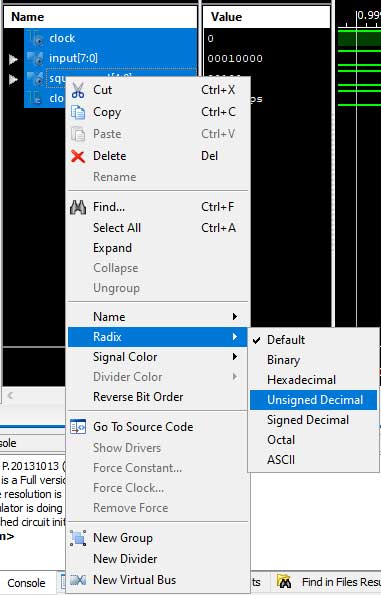
Select Unsigned Decimal from the radix menu to view the numbers in decimal format.
So, the input is 16, which we provided as Input in the testbench, and the output is 4, which is the square root of 16, generated correctly by our system.

The input is 16, and the output is 4, which is the square root of 16, generated correctly by our system.
Key Considerations When Using IPs
Finally, let’s go over a few points to keep in mind when using IPs.
The first point is that if any part of your system can be implemented using an IP, definitely do so, because using IPs saves both time and costs.
The second point is that you usually can't implement an entire project solely with IPs.
There will be many parts of the project that you'll need to code specifically. Therefore, the availability of IPs doesn't eliminate the need for HDL coding.
And the last point is that even if you sometimes have to pay for an IP, in many cases, using it will still be cost-effective.
This is because the cost of a module is often much less than the cost of the time you'd spend developing and implementing the code yourself.
Therefore, using IPs, even paid ones, is usually economical.
Pro Tips!
If any part of your system can be implemented using an IP, definitely do so, because using IPs saves both time and costs.
You usually can't implement an entire project solely with IPs.
Using IPs, even paid ones, is usually economical.
I hope this video has been helpful to you, and that you'll be able to use it in the design and implementation of your future systems.


